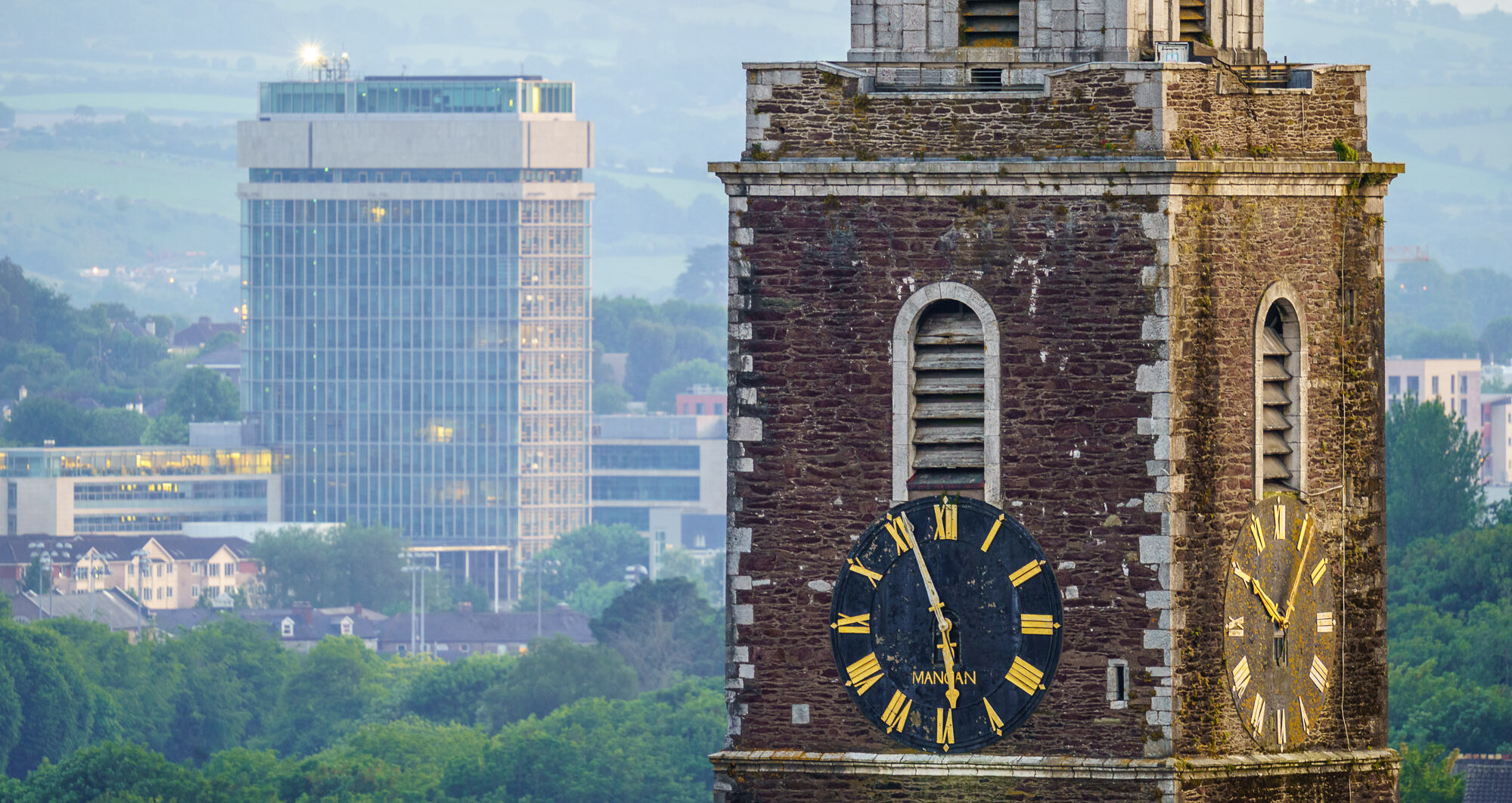
The north side of Cork City as seen from Shandon Bells on a beautiful day recently.
| Aperture | ƒ/8 |
| Camera | Canon EOS 6D |
| Focal length | 37mm |
| ISO | 100 |
| Shutter speed | 1/320s |

The north side of Cork City as seen from Shandon Bells on a beautiful day recently.
| Aperture | ƒ/8 |
| Camera | Canon EOS 6D |
| Focal length | 37mm |
| ISO | 100 |
| Shutter speed | 1/320s |

A few weeks ago Cork was visited by two steam engines from The Railway Preservation Society. You can find out more about the engine on their website!
| Aperture | ƒ/8 |
| Camera | Canon EOS 6D |
| Focal length | 24mm |
| ISO | 2500 |
| Shutter speed | 1/250s |

The North Cathedral in Cork City as seen from the steeple of St. Anne’s Church, or Shandon Bells as it’s known locally.
| Aperture | ƒ/8 |
| Camera | Canon EOS 6D |
| Focal length | 17mm |
| ISO | 100 |
| Shutter speed | 1/400s |

Poolside, Lanzarote, 2014.
| Aperture | ƒ/4 |
| Camera | Canon EOS 6D |
| Focal length | 17mm |
| ISO | 100 |
| Shutter speed | 8s |

| Aperture | ƒ/8 |
| Camera | Canon EOS 20D |
| Focal length | 12mm |
| ISO | 100 |
| Shutter speed | 1/200s |

San Diego, 2012.
| Aperture | ƒ/5.6 |
| Camera | Canon EOS 40D |
| Focal length | 88mm |
| ISO | 200 |
| Shutter speed | 1/125s |

| Aperture | ƒ/4.5 |
| Camera | Canon EOS 20D |
| Focal length | 10mm |
| ISO | 200 |
| Shutter speed | 1/1000s |

Belvelly Bridge is the only road bridge connecting Fota Island with Great Island where you’ll find the town of Cobh. This was shot in almost complete darkness and was a lengthy 74 second exposure.
| Aperture | ƒ/4 |
| Camera | Canon EOS 6D |
| Focal length | 17mm |
| ISO | 100 |
| Shutter speed | 74s |

Also known as Daly’s Bridge.
| Aperture | ƒ/8 |
| Camera | Canon EOS 6D |
| Focal length | 17mm |
| ISO | 200 |
| Shutter speed | 1/320s |

| Aperture | ƒ/5.6 |
| Camera | Canon EOS 20D |
| Focal length | 10mm |
| ISO | 200 |
| Shutter speed | 1/60s |

Since I started posting photos online I’ve always created two images:
This has served me well as I have from time to time changed the software I use to develop photos. Otherwise, I might have the web version and not be able to recreate a full size version for printing or other uses.
Up until very recently after I worked on an image I would add it to an “inphotos” default collection (press B), then right-click and export twice. Once for web, once for full size. I had to do this for each image. Sometimes I could select a bunch of them and export if I knew I had a number of “keepers” from a shoot but otherwise it was tiresome.
I’m now experimenting with smart collections in a Hard Drive Publish Service. I still have an inphotos.org collection, but I added another one called, “Published inphotos”. That’s a smart folder that contains all the published photos that have already gone up on the site. That folder contains every image that comes from the inphotos.org collection and is labelled Yellow.
Aside: I also added a “Potential” smart folder for photos I’d like to work on. Labelling a photo RED will put it in this folder.
Obviously I haven’t added every published photo to it and I probably won’t. I don’t have time to, but I will fill in older photos when I have a spare moment.
If you’re not familiar with collections here are two videos from Adobe on ordinary collections and smart collections that are worth watching:
I then created two publish services. One for full size images, the other for web images.
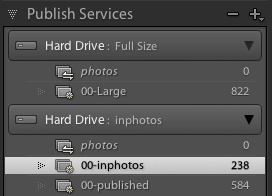
The 00-inphotos and 00-Large smart folders initially contained every image that is in the inphotos.org collection. I soon realised I’d have a problem with the web sized 00-inphotos folder. If I published a photo how would I remember that event easily? In the past I moved the file into a different physical folder, but I wanted Lightroom to track this. To do this I decided to add a yellow label to every photo I published. I created a new “00-published” smart folder. This folder collects every image that is labelled Yellow from the inphotos.org collection.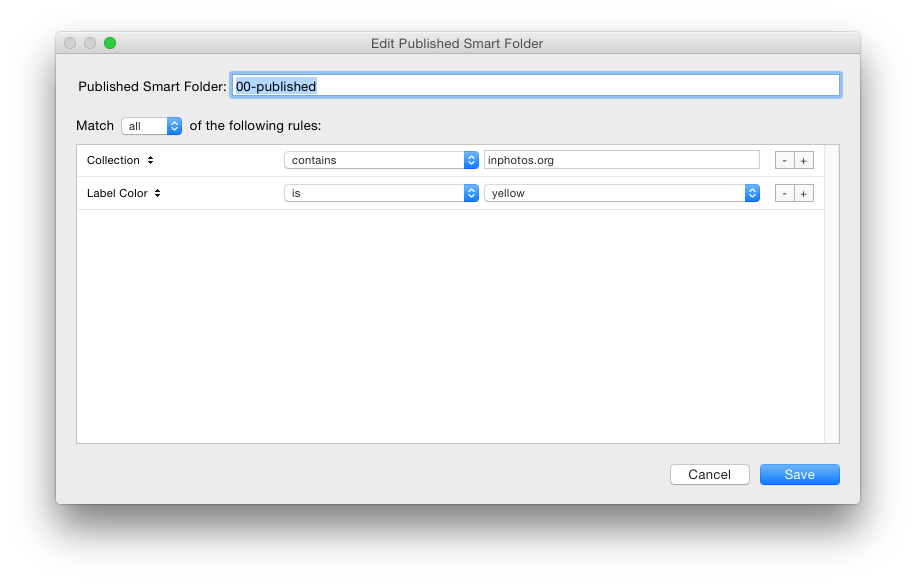 I modified the 00-inphotos smart folder so it contained every image except those labelled Yellow.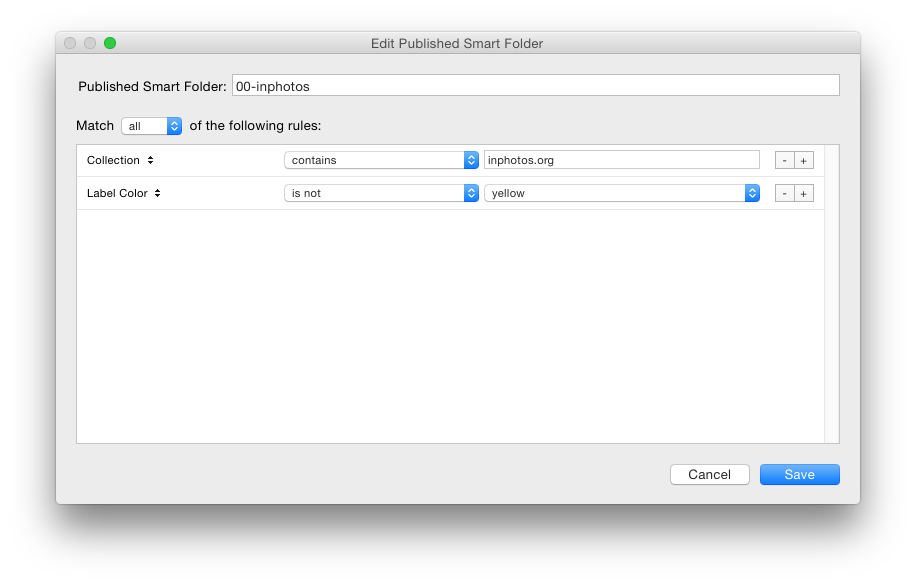
So, when I published an image I went into the inphotos.org collection in Lightroom and labelled the image yellow by pressing “7”. This would cause the 00-inphotos smart collection to delete the image, and the image would be added to the 00-published smart collection. I just had to hit Publish on each of them and the file would be “moved” from one physical folder to the other.
It’s early days yet and I’ve only posted a few photos using this method but it works well. Editing photos and adding them to the inphotos.org collection is a breeze but this is a process that’s not set in stone and will be refined with time. If it’s too awkward I’ll move on to something else.
I use the WordPress “new post” interface to make new posts, or if I have time to do so, I’ll schedule a number of posts using Postbot.
How do you use Lightroom to post to your blog or social media site?
| Aperture | ƒ/7.1 |
| Camera | Canon EOS 20D |
| Focal length | 18mm |
| ISO | 200 |
| Shutter speed | 1/125s |